Tools for download
FX Blue MyTrader Connector EA
The MyTrader Connector EA for MT4/5 does four things:
- Uploads your trading history to www.fxblue.com (just like the Publisher EA for MT4/5)
- Lets you log in to your MT4/5 account using our MyTrader web and mobile platform, and view your account in real time
- Lets you trade your account using our MyTrader platform
- Gives you real-time API access to your account [coming soon]
Download for Your Platform
Our installer, and also some of our individual tools, require v4.8 of the Microsoft .NET Framework. This may not be installed by default on some VPSes.
- The main version, which uses a DLL file and requires "Allow DLL imports" to be turned on (see below)
- A version with slightly lower performance, but which does not use a DLL file and therefore can be run on the MetaQuotes VPS service (or on other shared hosting which does not allow DLLs)
The installer will list your copies of MT4/MT5. You simply choose which one(s) you want to install the EA into.
After running the installer you need to update the MT4/MT5 Navigator, by right-clicking over the Navigator and choosing "Refresh", or simply by restarting MT4/MT5.
How It Works
Running the MyTrader EA on a chart
You open a new chart in MT4/MT5, for any symbol and timeframe, and run the EA on it by double-clicking on "MyTrader Connector" in the MT4/MT5 Navigator, or by dragging the EA from the Navigator onto the chart. (For MT4 only: ignore the MyTrader-Worker EA in the Navigator. This is explained below, and is used automatically by the main MyTrader EA.)
MT4/MT5 will display a settings window when you add the EA to the chart. You need to do 7 quick things to set up the EA:
MT4/MT5 will display a settings window when you add the EA to the chart. You need to do 7 quick things to set up the EA:
- Enter your username and password for www.fxblue.com
- Choose a hub
- Choose a hub password
- Set your broker's time zone
- Allow trading by the EA
- Turn on "Allow DLL imports" or WebRequests
- Get the MyTrader username which the EA displays
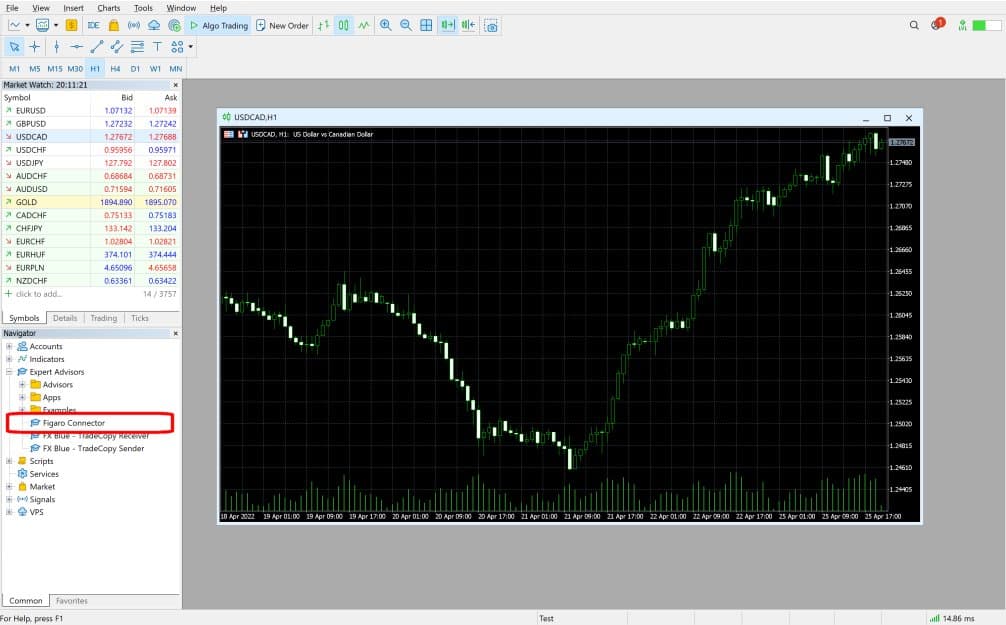
1. Enter your username and password for www.fxblue.com
On the Inputs tab of the settings window, you need to enter your username and password for www.fxblue.com.
The Connector EA also acts as a Publisher tool. As well as providing access to MyTrader, the EA will upload your trading results to www.fxblue.com, just like the Publisher EAs for MT4 and MT5.
The Connector EA also acts as a Publisher tool. As well as providing access to MyTrader, the EA will upload your trading results to www.fxblue.com, just like the Publisher EAs for MT4 and MT5.
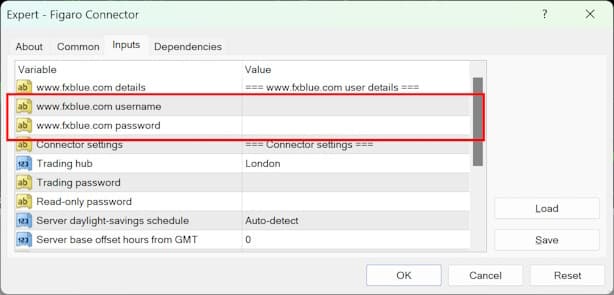
2. Choosing a trading hub
On the Inputs tab of the settings window, you need to choose which MyTrader hub to connect to. You simply pick the hub nearest to you. You need to make the same choice when logging into the MyTrader web/mobile platform.
If you are using a hosted copy of MT4/MT5 on a VPS, it will generally be best to choose the hub nearest your VPS, not nearest yourself.
If you are using a hosted copy of MT4/MT5 on a VPS, it will generally be best to choose the hub nearest your VPS, not nearest yourself.
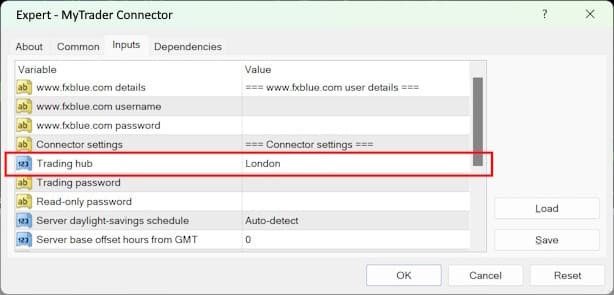
3. Choosing a hub password
You need to use the Settings window to choose a password for connecting to the EA. You log into the MyTrader web/mobile platform using the password you choose here - which can be any value - not the password for your MT4/MT5 account. For security, we recommend that you choose something different to your password for logging into MT4/MT5.
You can enter separate passwords for trading and for read-only access. If you log into MyTrader using the read-only password then you can see your account activity, but cannot place any trades.
You can enter separate passwords for trading and for read-only access. If you log into MyTrader using the read-only password then you can see your account activity, but cannot place any trades.
4. Setting your broker's time zone
This step is not required with most MT4/MT5 accounts. The default values in the Settings window will be correct for most accounts.
MyTrader needs to know the time zone used by your broker so that it can let you change the time zone of charts. The majority of MT4 and MT5 servers run on GMT+2 with daylight savings on the USA schedule (so that markets open at midnight on Sunday/Monday and there are 5 daily candles per week).
You only need to change these settings if your broker's server is not set to this common time zone. You need to select the daylight saving schedule, and the base number of hours behind/ahead of GMT. Some examples:
MyTrader needs to know the time zone used by your broker so that it can let you change the time zone of charts. The majority of MT4 and MT5 servers run on GMT+2 with daylight savings on the USA schedule (so that markets open at midnight on Sunday/Monday and there are 5 daily candles per week).
You only need to change these settings if your broker's server is not set to this common time zone. You need to select the daylight saving schedule, and the base number of hours behind/ahead of GMT. Some examples:
- Your broker's server runs at constant GMT(+0): select "No daylight savings" and enter 0 for the offset.
- Your broker's server runs on New York/US east coast time: select "USA" from the daylight savings list and enter -5 for the offset.
- Your broker's server runs on GMT+2/+3, but changes on the European schedule instead of the USA schedule: select "Europe" from the daylight savings list and enter 2 for the offset.

5. Allowing trading by the EA
You need to turn on the "Allow live trading" option in the Settings window:
- MT4: the option is on the Common tab of the Settings window, and is called "Allow live trading"
- MT5: the option is on the Common tab of the Settings window, and is called "Allow Algo trading"
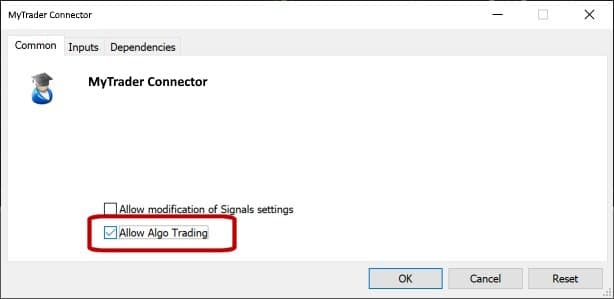
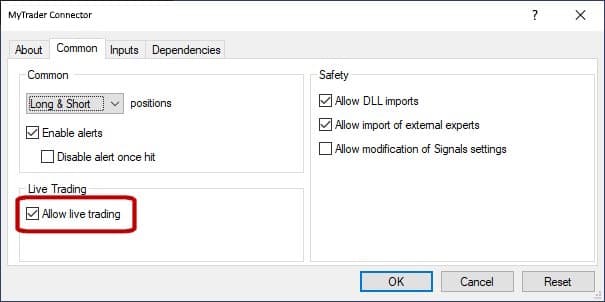
You also need to turn on the large AutoTrading/AlgoTrading button in the main toolbar of MT4/MT5.


If these settings are not turned on then you will be able to log in to the MyTrader platform but you will not be able to place trades.
6. Turning on "Allow DLL imports" or WebRequests
There are different requirements for the DLL version of the EA (MT4 and MT5) versus the no-DLL version (MT5 only).
MT4 version, and MT5 DLL version:
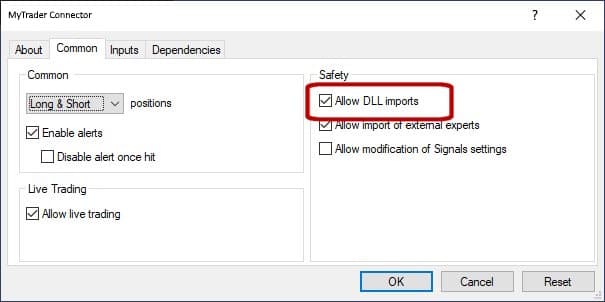
You need to turn on "Allow DLL imports" in the Settings window:
MT4 version, and MT5 DLL version:
You need to turn on "Allow DLL imports" in the Settings window:
- MT4: the option is on the Common tab of the Settings window
- MT5: the option is on the Dependencies tab of the Settings window

MT5 no-DLL version:
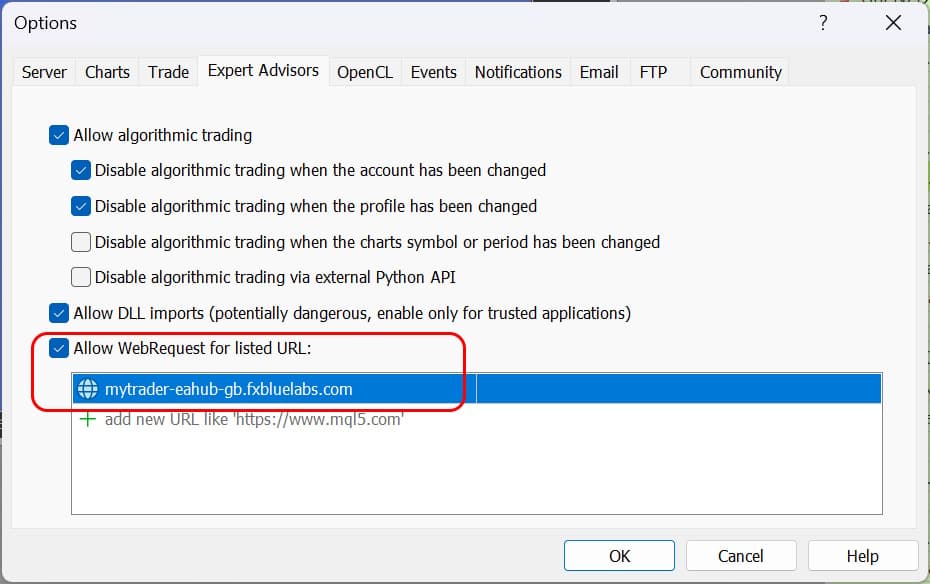
You need to allow the EA to contact the trading hub, using the WebRequest list in Tools / Options / Expert Advisors.
When you add the EA to a chart, it will display the setting which you need to add to the WebRequest list:
You need to allow the EA to contact the trading hub, using the WebRequest list in Tools / Options / Expert Advisors.
When you add the EA to a chart, it will display the setting which you need to add to the WebRequest list:
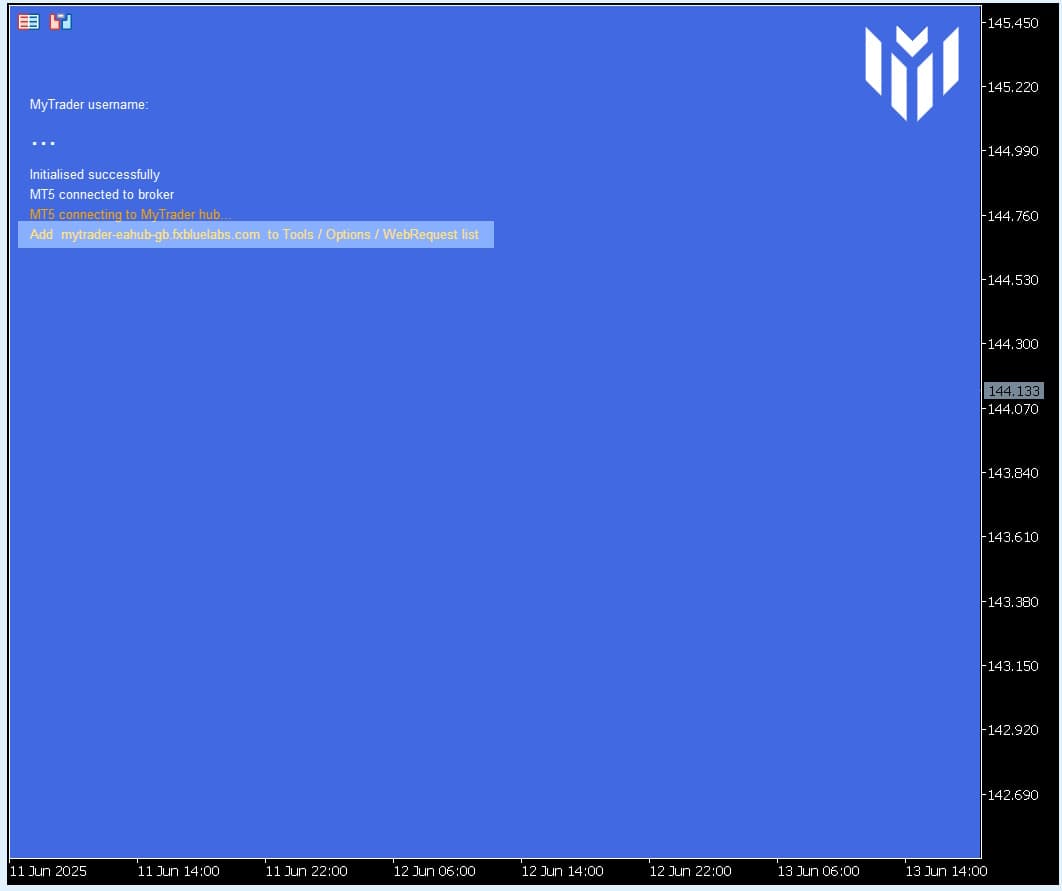
You need to add this setting to the WebRequest list in Tools / Options / Expert Advisors:
7. Running the EA and getting your username
When you save the settings and start the EA, the chart will turn blue and the EA will display status information about its connection. It will also display, in large capital letters, a username such as RHVWF. You log in to the MyTrader web/mobile platform using this username, plus the password which you chose in the Settings window (above).
In MT4 (only, not in MT5) the MyTrader Connector EA will also automatically create 4 extra new charts. These allow MyTrader to place trades without locking up the main EA while a trade is executed. MT5 does not need these "workers" because trade placement is asynchronous. The number of MT4 worker charts determines how many trading actions MyTrader can carry out at once. You can change the number of workers using the option in the MT4 Settings window for the EA.
In MT4 (only, not in MT5) the MyTrader Connector EA will also automatically create 4 extra new charts. These allow MyTrader to place trades without locking up the main EA while a trade is executed. MT5 does not need these "workers" because trade placement is asynchronous. The number of MT4 worker charts determines how many trading actions MyTrader can carry out at once. You can change the number of workers using the option in the MT4 Settings window for the EA.

Try and Download Our Another Tools
MT4 Auto-restart detects problems with MT4's connection to its broker, sending email alerts and automatically restarting the MT4 instance - which is usually enough to clear any connection problem. An essential for any serious MT4 user.
The Alert Forwarder enhances both MT4 and MT5 by adding email, SMS, Twitter, and push-notification alerts to EAs and indicators that lack built-in notification capabilities. For example, if an EA or indicator generates an on-screen alert, the Alert Forwarder can convert it into an email or push notification.
The MyTrader app suite gives you unrivalled trading power and information inside the MT4 and MT5 desktop client terminal: currency strength, quote board and deal tickets, trade grid and card view, real-time sentiment, market scanner, calculators, premium charting.