Tools for download
FX Blue Publisher EA
The MT4 Publisher EA is our recommended way of publishing your trading history from MT4 to FX Blue. Updates the website immediately on new trading activity. Highly configurable: set a start date, control which trades are published.
Download for Your Platform
Our installer, and also some of our individual tools, require v4.8 of the Microsoft .NET Framework. This may not be installed by default on some VPSes.
There is a choice of two versions of the EA for MT5:
The main version, which uses a DLL file and requires "Allow DLL imports" to be turned on (see below) A version with slightly lower performance, but which does not use a DLL file and therefore can be run on the MetaQuotes VPS service (or on other shared hosting which does not allow DLLs) The installer will list your copies of MT4/MT5. You simply choose which one(s) you want to install the EA into. After running the installer you need to update the MT4/MT5 Navigator, by right-clicking over the Navigator and choosing "Refresh", or simply by restarting MT4/MT5.
MT 4
About the Publisher EA
FX Blue's Publisher EA is our recommended way of publishing MT4 trading histories to the www.fxblue.com website. Our MT4 account sync is simpler because you do not need to run anything on your computer, but the Publisher EA is more flexible and can be configured to publish more frequently.
By default, the Publisher will update your trading results on the website every 5 minutes, or whenever you open or close a new position. You can change this behaviour and make publication more frequent using the EA's settings.
You can also use the settings to control options such as the following:
By default, the Publisher will update your trading results on the website every 5 minutes, or whenever you open or close a new position. You can change this behaviour and make publication more frequent using the EA's settings.
You can also use the settings to control options such as the following:
- Don't publish open positions; only publish closed trades.
- Set a delay before trades are published.
- Set a start date for the publication (i.e. exclude trading activity before a set date).
- Exclude particular instruments or MT4 magic numbers (trading systems)
Turning on WebRequest
The current version of the Publisher EA uses MT4 WebRequest. It does not use a DLL file, and the EA can be installed on any VPS.
You need to turn on WebRequest in MT4, as follows:
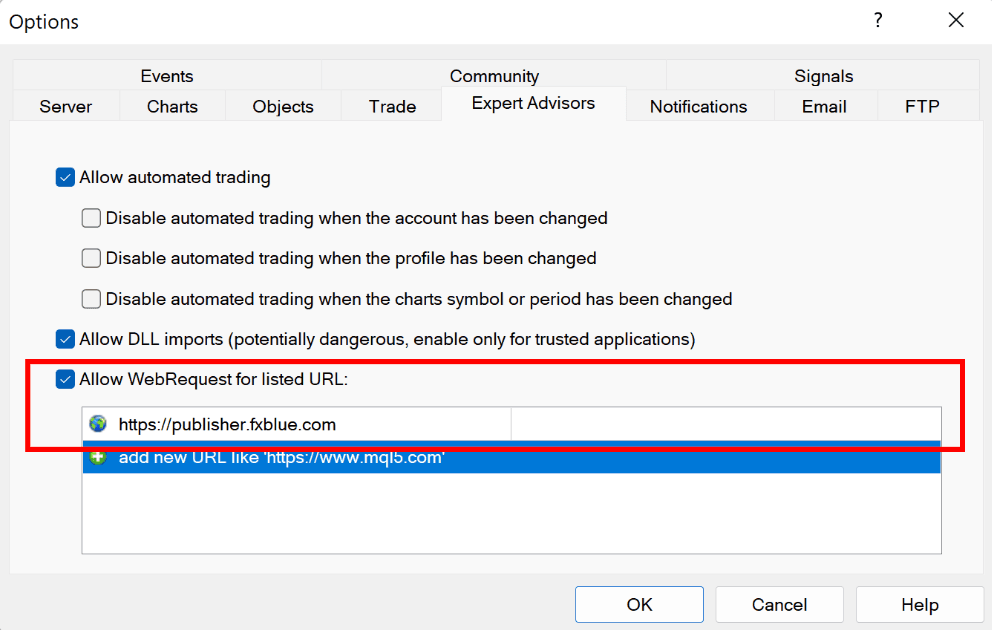
The settings should look like the highlighted area in the following screenshot:
You need to turn on WebRequest in MT4, as follows:
- Choose Tools > Options from the MT4 menu
- Go to the Expert Advisors tab
- Turn on "Allow WebRequest"
- Add https://publisher.fxblue.com to the list of URLs
The settings should look like the highlighted area in the following screenshot:
MT 5
About the Publisher EA
FX Blue's Publisher EA is our recommended way of publishing MT4 trading histories to the www.fxblue.com website. Our MT4 account sync is simpler because you do not need to run anything on your computer, but the Publisher EA is more flexible and can be configured to publish more frequently.
By default, the Publisher will update your trading results on the website every 5 minutes, or whenever you open or close a new position. You can change this behaviour and make publication more frequent using the EA's settings.
You can also use the settings to control options such as the following:
By default, the Publisher will update your trading results on the website every 5 minutes, or whenever you open or close a new position. You can change this behaviour and make publication more frequent using the EA's settings.
You can also use the settings to control options such as the following:
- Don't publish open positions; only publish closed trades.
- Set a delay before trades are published.
- Set a start date for the publication (i.e. exclude trading activity before a set date).
- Exclude particular instruments or MT4 magic numbers (trading systems)
Turning on WebRequest
The current version of the Publisher EA uses MT4 WebRequest. It does not use a DLL file, and the EA can be installed on any VPS.
You need to turn on WebRequest in MT4, as follows:
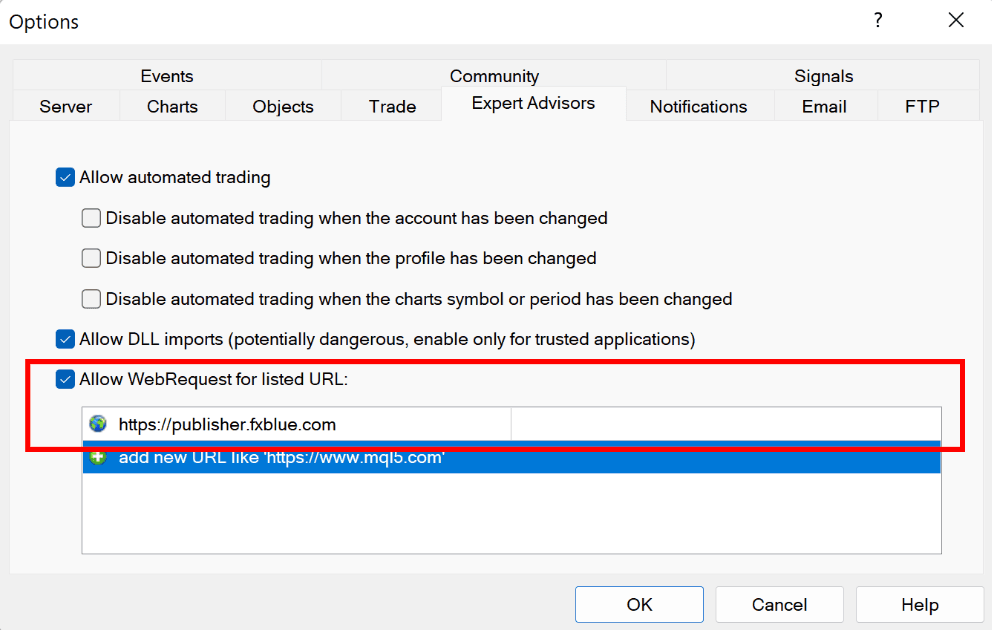
The settings should look like the highlighted area in the following screenshot:
You need to turn on WebRequest in MT4, as follows:
- Choose Tools > Options from the MT4 menu
- Go to the Expert Advisors tab
- Turn on "Allow WebRequest"
- Add https://publisher.fxblue.com to the list of URLs
The settings should look like the highlighted area in the following screenshot:
FXCM Trading Station 2
Our FXCM Publisher uploads trading statements from FXCM Trading Station to FX Blue Live. You can see an example of the publication at the following address:
Please note that the FXCM Publisher is only required for non-MT4 accounts with FXCM. If you are an FXCM client who trades using MT4, you should use our Publisher EA for MT4.
Our FXCM Publisher provides a number of options:
Please note that the FXCM Publisher is only required for non-MT4 accounts with FXCM. If you are an FXCM client who trades using MT4, you should use our Publisher EA for MT4.
Our FXCM Publisher provides a number of options:
- Include or exclude open positions
- Set a start date for inclusion
- Delay publication of orders (to prevent people copying your trades)
- Schedule automatic re-publication every few minutes
Oanda
Our Publisher app for Oanda uploads trading statements from Oanda accounts to FX Blue Live.
Our Oanda Publisher provides a number of options:
Alternatively, you can also publish your trading results from Oanda accounts using account sync. We collect your results for you, without you needing to download or install anything on your computer.
Please note: our publication facilities for Oanda are currently in beta, and only Practice accounts are currently supported.
Our Oanda Publisher provides a number of options:
- Include or exclude open positions
- Set a start date for inclusion
- Delay publication of orders (to prevent people copying your trades)
- Schedule automatic re-publication every few minutes
Alternatively, you can also publish your trading results from Oanda accounts using account sync. We collect your results for you, without you needing to download or install anything on your computer.
Please note: our publication facilities for Oanda are currently in beta, and only Practice accounts are currently supported.
Vertex FX
Our Vertex FX Publisher uploads trading statements from Vertex FX accounts to FX Blue Live. You can see an example of the publication at the following address:
Our Vertex Publisher provides a number of options:
- http://www.fxblue.com/users/vertex_example
Our Vertex Publisher provides a number of options:
- Include or exclude open positions
- Set a start date for inclusion
- Delay publication of orders (to prevent people copying your trades)
- Schedule automatic re-publication every few minutes
Explore and Download Our Other Tools
The Slingshot Author app creates packages for Slingshot, letting other users quickly download a single package which installs a chart (or template) plus all the EAs and custom indicators used on that chart.
The MyTrader app suite gives you unrivalled trading power and information inside the MT4 and MT5 desktop client terminal: currency strength, quote board and deal tickets, trade grid and card view, real-time sentiment, market scanner, calculators, premium charting.
The Custom Timeframe Generator lets you create charts for timeframes which are not available by default in MT4, e.g. 10-second charts, 3-minute charts, or tick charts. You run a Generator EA on a normal chart for your chosen symbol, and the custom timeframe is then available from MT4's list of offline charts. The custom timeframe continues to update for as long as the Generator EA is running.