FX Blue Crypto Prices from GDAX
FX Blue Crypto Prices from GDAX for MT 5 - User Guide
The GDAX price indicator collects current cryptocurrency prices from the GDAX exchange and displays them on an MT5 chart, for comparison against your broker's prices.
1Introduction
1.1Overview
The GDAX price indicator collects current cryptocurrency prices from the GDAX exchange (www.gdax.com) and displays them on an MT5 chart, for comparison against your broker's prices.
Please note: the MT5 version of the indicator requires the 64-bit version of MT5.
The indicator can display the following GDAX prices: BTC/USD, LTC/USD, ETH/USD, BTC/EUR, LTC/EUR, ETH/EUR, BTC/GBP, LTC/BTC, ETH/BTC.
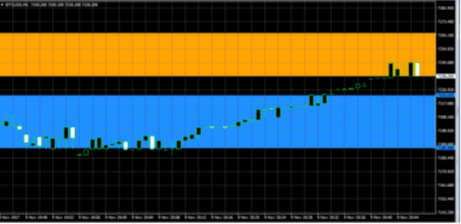
The following example shows the GDAX spread for BTC/USD, including charges, lying entirely outside the broker's spread (GDAX in blue; MT4 broker in orange):
1.2Licence
Unless otherwise specified in writing by FX Blue, this software is licensed for personal use only. You are not allowed to distribute it to other people, regardless of whether or not money is changing hands. You only have a licence to use the software if you, personally, downloaded it from our website.
The software is provided entirely at the user's risk, and you should check it thoroughly before deploying it on computers trading real money. FX Blue accepts no responsibility whatsoever for any loss of any kind caused by installation or use of the software.
2Configuring the indicator
2.1Installing the indicator
The www.fxblue.com website provides an installer which automatically adds all the indicator's files into your selected copy(ies) of MT5. After running the installer you need to update the Navigator in MT5, either by restarting MT5 or by right-clicking over Indicators in the Navigator and choosing Refresh.
Please note: the indicator requires v4 of the Microsoft .NET framework. If this is not already installed on your computer, you can download it from the following address:
https://www.microsoft.com/en-gb/download/details.aspx?id=17851
2.2Compulsory indicator parameters
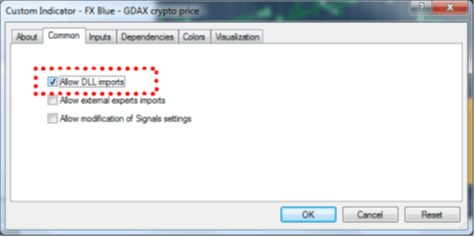
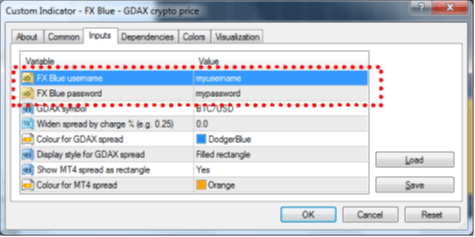
You need to turn on the "Allow DLL imports" setting for the indicator, and enter your FX Blue username and password.
2.2.1"Allow DLL imports"
You need to turn on the "Allow DLL imports" setting, on the Common tab when adding the indicator to a chart.
Please note: changing the setting in Tools / Options / Expert Advisors does not affect any EAs or indicators which are already running. This setting controls the default which is used when you next add an EA or indicator to a chart.
2.2.2FX Blue username and password
You need to enter your FX Blue username and password in the settings for the indicator:
2.3Choosing the GDAX symbol to display
You need to choose which symbol from GDAX to display, from the drop-down list of options, to match the chart in MT5.
2.4Colours and display style for GDAX spread
You can choose the colour for the display of the GDAX spread, and whether to show ask and bid lines or a filled rectangle.
2.5Widening the GDAX spread
GDAX has charges for placing market orders, which widen the effective spread (e.g. https://www.gdax.com/fees/BTC-USD)
You can include these in the display by entering a value such as 0.25 for the spread-widening. This will lower the bid price and raise the ask price by that percentage.
2.6Displaying the MT5 spread
You can choose to display the MT5 spread as a filled rectangle, for easier comparison against the GDAX spread. If you turn this off, then you can instead use the chart settings in MT5 to display a line for the ask price as well as the bid price.